Can a single app turn our PC into the best big‑screen hub for live channels, DVR, and on‑demand viewing?
We believe yes. This introduction shows how the Sparkle TV application from HKAB brings robust features to a large display. We get DVR, multiview, EPG, subtitles, and multiple audio tracks — all tuned for smooth playback.
By pairing the app with LDPlayer on our PC, we gain mouse precision, multi‑instance sync, and reliable access without battery limits. We supply our own legally obtained content and connect formats like m3u, Xtream Codes, and XMLTV, plus PVR sources such as HdHomeRun and Jellyfin.
What to expect next: quick download and installation via LDPlayer, adding sources, and unlocking Plus features for timeshift, DVR, and multiview. We’ll walk through setup, optimization, and common fixes so we can start viewing in minutes.
Key Takeaways
- We use the Sparkle TV app with LDPlayer to stream on a large display.
- The application provides features but not channels; users add their own sources.
- Plus unlocks advanced tools: DVR, timeshift, multiview, and VOD.
- Supported formats include m3u/m3u8, Xtream Codes, and XMLTV; PVRs like HdHomeRun and Jellyfin work too.
- Next steps: download LDPlayer, install the app, add sources, and tune settings.
What Sparkle TV Is and How It Works Right Now
This section shows how the app links our m3u lists, Xtream credentials, and XMLTV guides for seamless viewing.
Format support and basics: The application reads m3u/m3u8 playlists, accepts Xtream Codes credentials, and imports XMLTV EPG files. That keeps our channel lists and guide data intact across services.
Where it runs: Native builds exist for Android TV, Google TV, and Fire TV devices. On a PC we run the same release through LDPlayer for a desktop view and mouse control.
Content and compliance: The app provides no channels or media; we supply legally obtained sources and maintain any subscription with our service provider.
PVR and backend support: Backends include Jellyfin, HdHomeRun (gen 4+), Tvheadend (4.2+ and HTSP api 24+), Stalker, DVBLink, DVBViewer, TVMosaic, and Enigma2 boxes. That lets us watch live, record, and use server-side timeshift where available.
| Feature | Supported Types | Notes |
|---|---|---|
| Playlists & EPG | m3u/m3u8, XMLTV | Maintains channel IDs and logos for a unified guide |
| Auth/API | Xtream Codes, Xtream API | Works with many paid subscription services |
| PVR Backends | Jellyfin, HdHomeRun, Tvheadend, Stalker, DVBLink | Recording, timeshift, and aggregated sources |
| Devices | Android TV, Google TV, Fire TV, LDPlayer (PC) | Advanced features mainly on Android TV/Google TV |
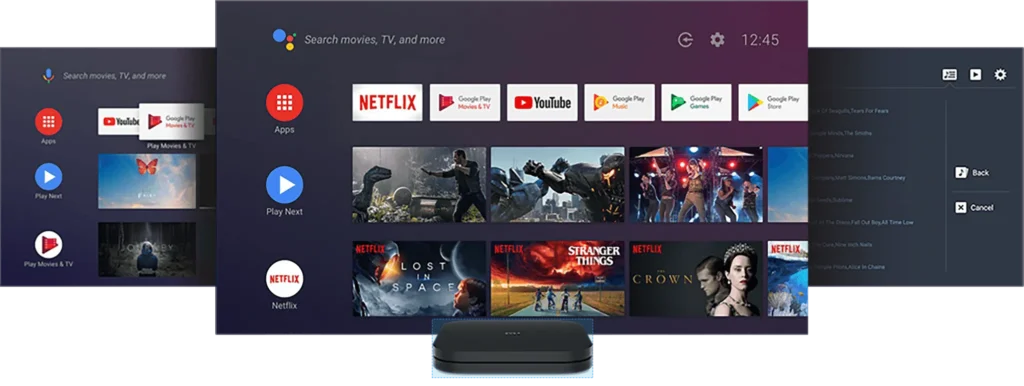
- We get a modern program guide with logos and images for easy discovery.
- Mouse/keyboard on desktop or a remote on a Fire Stick gives flexible control.
- Remember: subscription stays with our IPTV service; the application is the viewing layer.
Requirements and Prep Before We Install
Let’s check hardware and network basics so our setup runs without hiccups.
PC specs and OS considerations
We verify CPU, GPU, and RAM to make sure LDPlayer renders video smoothly on a large screen. Aim for a recent multi‑core CPU, a dedicated GPU with current drivers, and at least 8–16 GB of RAM for consistent viewing.
Keep the OS updated and close background apps that steal cycles. That reduces decode delays and avoids common performance issues when multiple windows or overlays are active.
Internet bandwidth and stability targets
Plan per‑stream bandwidth: SD ≈ 3–5 Mbps, HD ≈ 5–10 Mbps, and 4K ≈ 25–35 Mbps. Stability matters more than peak speed; jitter and packet loss cause buffering and drops in video quality.
We test a short sample stream before prime time to confirm our settings and access patterns work under real load.
Router tips: QoS, Ethernet vs. Wi‑Fi, and avoiding congestion
Use wired Ethernet for desktops and fixed living‑room devices to avoid wireless interference. Reserve Wi‑Fi for mobile viewing or temporary setups.
Enable QoS on capable routers to prioritize streaming and other critical services. That prevents downloads, backups, or gaming from creating issues during key shows.
| Area | Recommendation | Why it helps |
|---|---|---|
| CPU/GPU/RAM | Modern multi‑core CPU, dedicated GPU, 8–16 GB RAM | Prevents stutter and keeps UI responsive |
| Bandwidth | 3–5 Mbps SD; 5–10 Mbps HD; 25–35 Mbps 4K | Avoids buffering at target resolution |
| Network | Ethernet preferred; QoS configured | Reduces interference and prioritizes video |
- Adjust LDPlayer settings: balanced graphics, proper RAM allocation, and updated GPU drivers.
- Map device placement and cabling to keep access stable long term.
- Test playback and tweak settings before major viewing sessions.
How to Install and Run Sparkle TV – IPTV Player – Computer program
We walk through a secure download and installation so we can access our channels fast.
Step 1 — LDPlayer setup: Download the LDPlayer installer and run the installation on our desktop. Open the built‑in Play Store and sign in with a Google account to reach the official listing.
Step 2 — Install the app: Search for “Sparkle TV – IPTV Player” in Play Store and install the trusted version. Launch the application and grant storage and network permissions so playlists and EPG files work right away.
First launch configuration: Choose language and interface orientation to suit a monitor or living‑room screen. Verify Auto Frame Rate and confirm a test list to ensure immediate access to channels and guide data.
- Consider native devices if preferred: Android TV, Google TV, or a Fire Stick for remote‑first navigation.
- Use multi‑instance to run multiple accounts and LDPlayer file sharing to import XMLTV and playlist files quickly.
- Keep subscription details with your service provider and update the app via Google Play to maintain secure access.
Quick kitchen break: While setup runs, try easy crockpot Chicken and Dumplings — four ingredients—then add a Red Lobster biscuit mix twist for extra flavor.
Add Our IPTV Sources and Configure the Program Guide
To build a useful guide, we attach m3u lists and an XMLTV feed before organizing channels.
Add sources: We import m3u/m3u8 playlist URLs or enter Xtream Codes credentials. Then we attach an XMLTV file to enrich the program guide with schedules, logos, and images. This step ensures movies and series show accurate times and artwork.
Channel organization and quick access
We map channels into categories and create custom groups to reduce scrolling. Sorting and show/hide tools let us prune noisy lists and surface the content we watch most.
Favorites and home integration give us Play Next, recent channels, and recorded items on the main screen for fast viewing.
“A clean guide saves time and points us to what matters — live events, VOD, and saved recordings.”
| Action | What it does | Notes |
|---|---|---|
| Import list | Loads channels from playlist or Xtream | Verify mapping and logos |
| Attach XMLTV | Populates schedule and images | Fix gaps by adjusting XMLTV source |
| Create categories | Groups related channels and VOD | Keep sports/news separate from entertainment |
| Enable parental controls | PIN protects selected categories | Lock settings to prevent changes |
- Tailor settings for subtitles, audio tracks, and initial volume.
- Run a quick test: open a few channels, check search, and confirm the guide is correct.
- Note: favorites, sorting, and show/hide require Plus to use across multiple lists.
Use Core Features and Unlock Sparkle TV Plus
Upgrading gives us tools that turn routine viewing into a flexible entertainment hub.
With the paid version activated, we gain timeshift, DVR, multiview, and VOD features that fit real life. These extras improve how we watch live events and manage recorded series. They also help us find movies and shows faster.
Timeshift: pause and resume live TV
Timeshift lets us pause, rewind, and resume live streams so we never miss a moment. It works well for brief interruptions and live sports.
DVR/PVR: schedule and watch recordings and series
We schedule single recordings or entire series to capture content automatically. DVR keeps metadata and episode info for easy browsing.
Multiview: watch multiple streams at once
Multiview displays several channels at once. We pick layouts that balance awareness and performance for big events.
VOD: catch-up, movies, and series navigation
VOD brings catch‑up, movies, and series into searchable libraries. We filter by title, genre, or date to find entertainment fast.
Search smarter and playback polish
Search covers channels, shows, movies, and series across sources. Playback options like Auto Frame Rate, multiple audio tracks, and subtitles refine picture and sound for better viewing.
Integration, customization, and daily tools
Plus merges multiple sources into one guide and supports favorites, sorting, and categories. We customize the remote layout, pick themes, and set a sleep timer for nightly use.
| Feature | What it does | When to use | Benefit |
|---|---|---|---|
| Timeshift | Pause/rewind live streams | Interruptions, replays | Avoids missed action |
| DVR | Record single shows or series | Prime‑time and serial content | Build a personal library |
| Multiview | Multiple streams in one screen | Sports, news, events | Monitor several feeds |
| VOD & Search | On‑demand catalogs and search | Catch‑up and browsing | Find movies and series quickly |
Troubleshooting, Performance Tuning, and Support
When channels stutter or the program guide has gaps, we start with fast checks to find the root cause.
Fixing buffering, EPG gaps, and missing logos
We resolve buffering by testing bandwidth and stability first. If speed is fine, we check the playlist and test alternate channels from the same services to isolate the fault.
EPG gaps usually point to the XMLTV source or mapping errors. We validate the guide URL, refresh the mapping, and clear cached EPG data to force a re-sync.
Missing logos often fix after updating the playlist, refreshing artwork mappings, and reloading channel metadata.
Optimizing LDPlayer settings and device compatibility
Assign enough RAM and enable hardware acceleration for consistent video. Select a compatible graphics mode and reduce background instances during critical streaming sessions.
We set Auto Frame Rate and adjust codec preferences to avoid judder. If performance drops, run a single instance and close other apps.
When to go wired and tune router QoS
We prefer wired Ethernet for steady access. Enable QoS to prioritize streaming traffic over large downloads or backups.
Test both wired and wireless paths to see if the issue is network‑wide or source specific.
Compliance, accounts, and support escalation
Important: sparkle iptv is a viewing layer and provides no content. We must supply legal content and keep subscriptions in good standing.
Keep account credentials secure and isolate profiles for each user. Re-authenticate services that use tokens when prompted.
For persistent issues, we contact support with logs, playlist links, device/version details, and steps taken. That speeds diagnosis and restores access.
| Problem | Quick fix | When to contact support |
|---|---|---|
| Buffering | Test speed; switch to Ethernet; enable QoS | After network verified and issue persists |
| EPG gaps | Validate XMLTV source; re-map channels; clear cache | When guide still misses shows after refresh |
| Missing logos | Update playlist; refresh artwork; re-sync metadata | If logos fail to reattach after updates |
| DVR failures | Check storage space; confirm schedule and target | If recordings stop or metadata is lost |
“Collect logs, example stream links, and version info before opening a support ticket; it makes root cause analysis much faster.”
Conclusion
We wrap up by confirming that Sparkle is an iptv player that centralizes our sources into one consistent viewing hub.
Next steps: install on PC via LDPlayer or on a native TV device, add your channels and PVR backends (m3u/m3u8, Xtream Codes, XMLTV, HdHomeRun, Jellyfin), then test a few movies and series to confirm playback and program data.
Consider upgrading your subscription to Plus for timeshift, DVR, multiview, VOD, and advanced favorites. Keep account details current, verify access on each device, and keep support resources and version updates handy.
With legal content in place, the player’s features and support give us reliable streaming and premium entertainment. Ready to purchase sparkle Plus, import sources, and start viewing? Our entertainment is a click away.
FAQ
What is Sparkle TV IPTV Player and how can we use it on our computer?
Sparkle TV IPTV Player is an app we can run on a PC using an Android emulator like LDPlayer. It lets us load IPTV playlists and electronic program guides to watch live channels, on‑demand movies, and recorded series. We install the emulator, add the app from Google Play inside it, grant basic permissions, and then import m3u or Xtream Codes credentials to populate channels and EPG data.
Which playlist and EPG formats does the app support?
The app supports standard m3u and m3u8 playlists, Xtream Codes API access, and XMLTV EPG imports. We can combine multiple sources so the program guide shows unified listings across all feeds.
What devices can we run the application on?
We run the app on Android TV boxes, Google TV devices, Amazon Fire TV Stick, and on PCs via emulators such as LDPlayer. Native installs on Android devices offer lower latency, while emulation on PC gives us larger screens and multi‑window flexibility.
Do we need to provide channels and media, or does the app include them?
The app does not include or supply content. We must provide our own channel sources, playlists, or service credentials. The software only reads the feeds we add and displays the streams and program guide accordingly.
Which PVR and backend sources are compatible with the player?
The player integrates with common PVR sources like Jellyfin, HDHomeRun, Tvheadend, Stalker portals, and DVBLink. These backends let us aggregate live tuners and recorded content into the guide when configured correctly.
What minimum PC specs do we recommend for smooth streaming on a large screen?
For reliable playback we recommend a modern multicore CPU, at least 8 GB of RAM, and a dedicated GPU when possible. A 64‑bit Windows 10/11 install and enough disk space for recordings and cache help avoid stutters during HD and 4K streams.
How much internet bandwidth is needed for SD, HD, and 4K streams?
Aim for stable upload/download speeds of about 3–5 Mbps per SD stream, 6–10 Mbps per HD stream, and 15–25 Mbps per 4K stream. Reserve extra headroom if multiple devices or streams run concurrently to prevent buffering.
What router settings should we check for the best viewing experience?
Enable QoS to prioritize streaming traffic, use wired Ethernet where possible for critical devices, and place dual‑band routers so we can separate streaming devices from other heavy Wi‑Fi use. Avoid congested channels and consider wired connections for 4K playback.
How do we install LDPlayer and add the app securely?
Download LDPlayer from its official site, verify the installer, and follow on‑screen prompts to install. Open LDPlayer, sign in to Google Play, install the app there, and only grant necessary permissions such as storage or network access when prompted.
What are the first steps after launching the app for the first time?
On first launch we choose language and screen orientation, allow required permissions, then go to Settings to add playlists or Xtream credentials. We also set home screen layout preferences and enable program guide imports before browsing channels.
Can we use a Fire TV Stick or Android TV box instead of an emulator?
Yes. Installing the native app on a Fire TV Stick or Android TV box provides a more integrated experience and typically better remote control support. Use the device’s app store or sideload if the app isn’t listed, following the platform’s security steps.
How do we manage multiple accounts and share files between instances?
In LDPlayer we can run multiple instances and assign different Google accounts to each. Use the emulator’s file‑sharing or folder mapping features to move playlists, recordings, or backups between instances securely.
How do we add playlists, Xtream Codes, and XMLTV EPG to the guide?
Go to Settings > Playlists or Accounts, choose the type (m3u/m3u8 URL, Xtream Codes), and enter the URL or credentials. For EPG, import an XMLTV file or URL and map channel IDs so the guide aligns with your stream list.
How can we organize channels and create categories?
Use the channel manager to sort, hide, or group channels into custom categories. We can rename entries, reorder lists, and create favorites to surface frequently watched channels on the home screen.
Are there parental controls and PIN protection?
Yes. We enable parental controls in Settings, set a PIN, and mark channels or VOD titles as restricted. This prevents unauthorized access and keeps the experience family‑friendly.
What core features does the Plus version unlock?
The Plus upgrade typically adds advanced DVR capabilities, extended timeshift, multiview mode, and enhanced playback options like automatic frame rate switching, multiple audio tracks, and subtitle handling. Exact features depend on the licensed build.
How do timeshift and DVR work for live TV?
Timeshift lets us pause and resume live TV instantly by buffering the stream locally. DVR schedules allow us to record single shows or entire series to watch later, with recordings accessible from the app’s library.
Can we watch multiple streams at once?
Yes. Multiview or split‑screen modes let us view two or more streams simultaneously, depending on device capability and available bandwidth.
How do we search for channels, programs, movies, or series effectively?
Use the global search field to query channel names, program titles, or VOD metadata. Filtering by category, date, or source helps narrow results quickly across all connected sources.
What playback settings improve video quality and compatibility?
Enable Auto Frame Rate to match stream fps, select hardware acceleration if available, and choose the correct audio track and subtitle file. Adjust buffer size for smoother playback on unstable networks.
How do we use multiple sources simultaneously to build a unified guide?
Import each source and then use the guide mapping tool to align channel IDs and logos. The app merges EPG entries so we see a single consolidated schedule across all feeds.
What remote customization and theme options are available?
We can customize remote layouts, assign shortcuts, change color themes, and set a sleep timer in Settings. These tweaks speed navigation and tailor the interface to our preferences.
How do we fix buffering, missing EPG data, or absent channel logos?
Check source URL validity and server health first. Optimize network settings, increase buffer size, and reimport EPG files. For logos, ensure channel IDs match between playlist entries and the XMLTV or logo pack.
Which LDPlayer settings help improve compatibility and performance?
Allocate adequate RAM and CPU cores to the emulator, set graphics mode to the recommended renderer, and enable virtualization in BIOS if available. These changes reduce stutter and improve app responsiveness.
When should we switch to wired Ethernet and tweak router QoS?
Switch to wired when watching HD or 4K streams, or when multiple concurrent streams cause Wi‑Fi instability. Configure QoS to prioritize streaming ports and devices to maintain consistent throughput.
Is the app responsible for the content we watch?
No. We provide our own sources and are responsible for ensuring they are licensed and legal. The app functions as a client and does not host or distribute content itself.
Where can we get support if we encounter issues?
For installation, playback, or emulator configuration help, consult the app’s official support channels, community forums, and emulator documentation. Provide logs and detailed steps to reproduce issues to speed up resolution.